
Birdathon - chronicle all your birding adventures.

Birdathon 2.0.3 is now available! Check out what’s new to see what changed.
Hello. Welcome to Birdathon!
Birdathon is an observation-centric tool for creating birding checklists. It helps you organize your checklists and share them with others. Use Birdathon in the field to quickly record whether a bird is seen or heard and the number observed. The time and location of each observation is automatically recorded, so if you see the same species in multiple locations, you can see the exact location of each observation. You can adjust the location, time entries and the count of birds observed at any time to ensure your records are accurate.
Checklist maps display the locations of your observations. You can overlay county boundaries for every US state. You can add a range circle such as a 5MR (5-mile Radius) to your maps. You can import and overlay custom kml/kmz files onto your maps.
An Overview feature lets you see your combined observations for any time period, and displays a map showing any boundaries you have selected, so you can utilize the map feature even when you are not actively checklisting. You can export Overview data into a csv text file or create a new checklist template from the Overview.
Your checklists can be viewed in taxonomic order, alphabetically, by rarity or as a timeline of species. You can enrich your checklist with field notes and add observations such as mammals, butterflies, wildflowers, etc., to make it a more complete record of your experience. You can organize your checklists into categories such as Day List, Year List, County List, Trip List, Life List, Yard List, etc., and assign color themes to your lists.
Bird species may be added and deleted from your lists at any time. You can create new checklist templates from your previous lists or import templates created by others. You can change which template is being used for a checklist at any time. You can import text files into Birdathon, making them into templates or new checklists.
Different export options for your checklists allow you to import into eBird or another copy of Birdathon.
The bird species source data and other resources used in this app come from the following sources:
AviList, a unified global checklist of birds, is the core data set used for Birdathon. https://www.avilist.org. Some data has been integrated from the following sources: The eBird/Clements checklist of birds of the world (https://www.birds.cornell.edu/clementschecklist/download/), the American Ornithological Society's (AOS) Checklist of North and Middle American Birds (https://checklist.americanornithology.org), and the American Birding Association's (ABA) checklist of North American Birds (https://www.aba.org/listing-taxonomy/)
Alpha codes come from The Institute for Bird Populations’ Standardized 4- and 6-letter Bird Species Codes. https://www.birdpop.org/pages/birdSpeciesCodes.php.
County boundary data is from the United States Geological Survey (USGS) TIGER/Line 2019 Shapefiles found on the United States Census Bureau's website at https://www.census.gov/geographies/mapping-files/time-series/geo/tiger-line-file.2019.html. Boundaries should be used as general guidelines and not be considered precise. Note especially where county boundaries follow creeks, rivers, ridge lines and other natural features, and so are of much finer resolution than can be shown on Birdathon’s maps.
California breeding bird atlas blocks come from the California Bird Atlas, https://www.californiabirdatlas.org.
You can send an email report that includes your timeline, all notes you take in the field and a taxonomic list of birds observed. You can view a map of your sightings and include the map in your email report. You can export your checklist as a csv file for import into eBird.
Birdathon is intuitive to use right from the start, but being familiar with all its capabilities can make it even more useful. Below is a description of the main features of Birdathon.
Main View
At the top level of Birdathon is your list of lists. They can be organized by type (Day List, Trip List, etc.), alphabetically by name, order created or order last modified
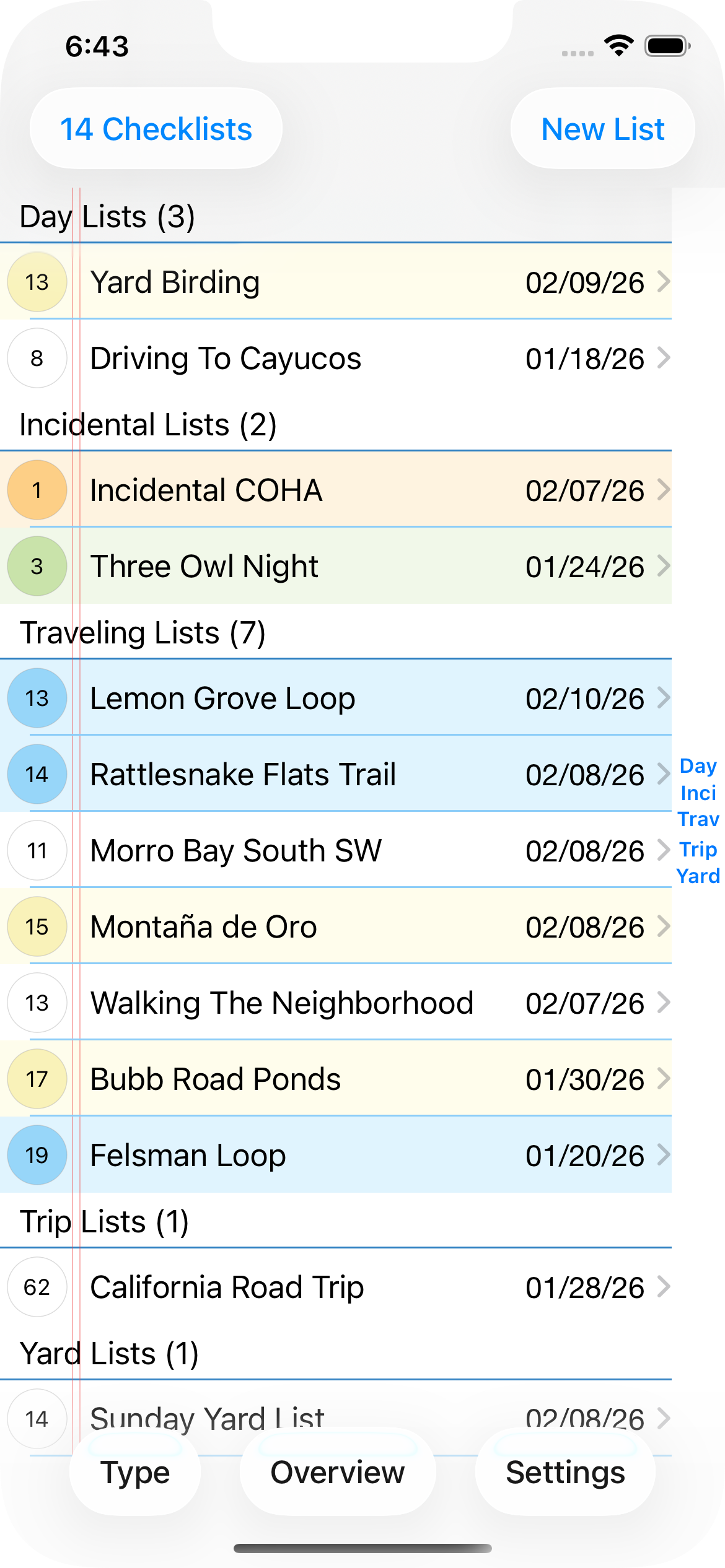
Tap "New List" in the upper right corner to start a new list. You will be shown the New Checklist View, which contains of templates to use as starting points. Pick the one most appropriate for your intended use.
New Checklist View
The New Checklist View displays all the list templates available to you for creating a new list. You can import new templates or create your own custom templates (more on this below).
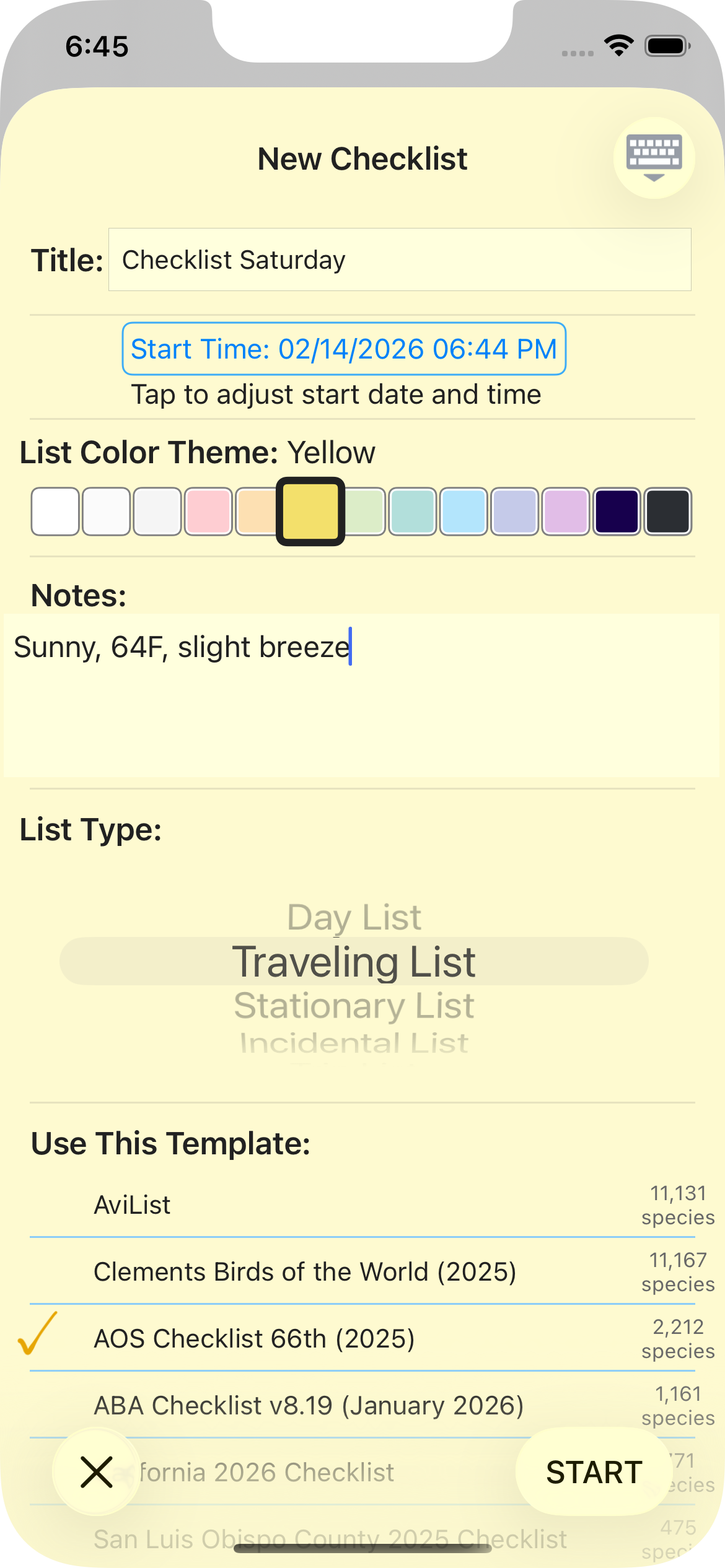
Just tap “Start” to begin! You can come back to these settings at any time while checklisting
Checklist View
When you're out in the field, you'll spend your time in Checklist View, adding observations to a checklist you created at the start of your adventure. Checklist View shows all the birds added automatically by the template, but it's very easy to add birds not shown on the list, or to delete birds from the list.

You can mark a bird as seen or heard right from the list by tapping the checkbox to the left of a bird. This will bring up two larger buttons for [Seen] or [Heard] birds. Each tap on the buttons bumps the observed count by one. The checkbox will display a check mark or a musical note depending on which button you tapped, and the count for that bird will be displayed in parentheses after the bird name. Birdathon helps ensure that birds are not accidentally counted by unintentional taps, while making it easy and fast to bump up the count.
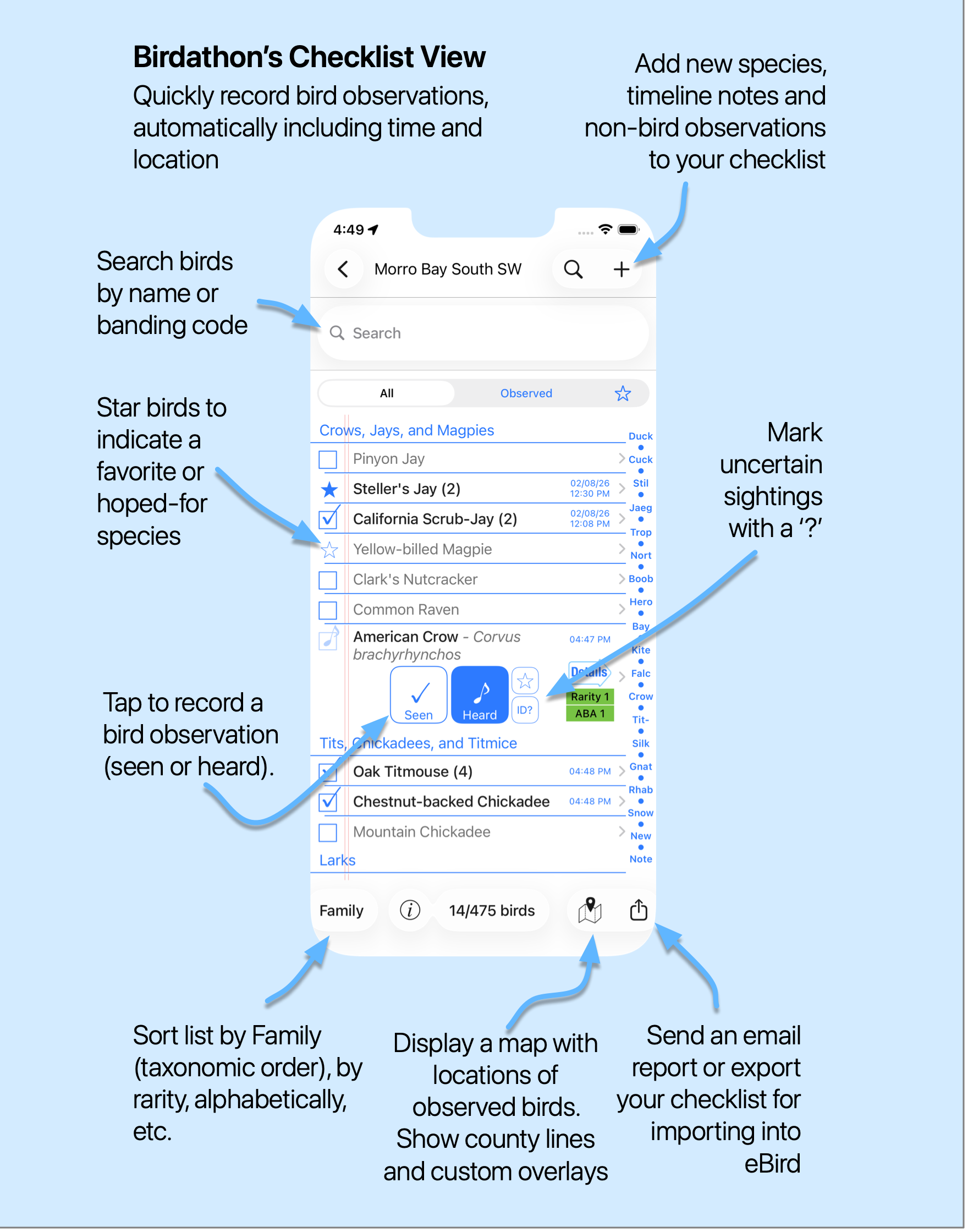
If you want to bump the count by more than a few, or you'd like to add notes or fix an entry, you can use the Detail View.
Detail View
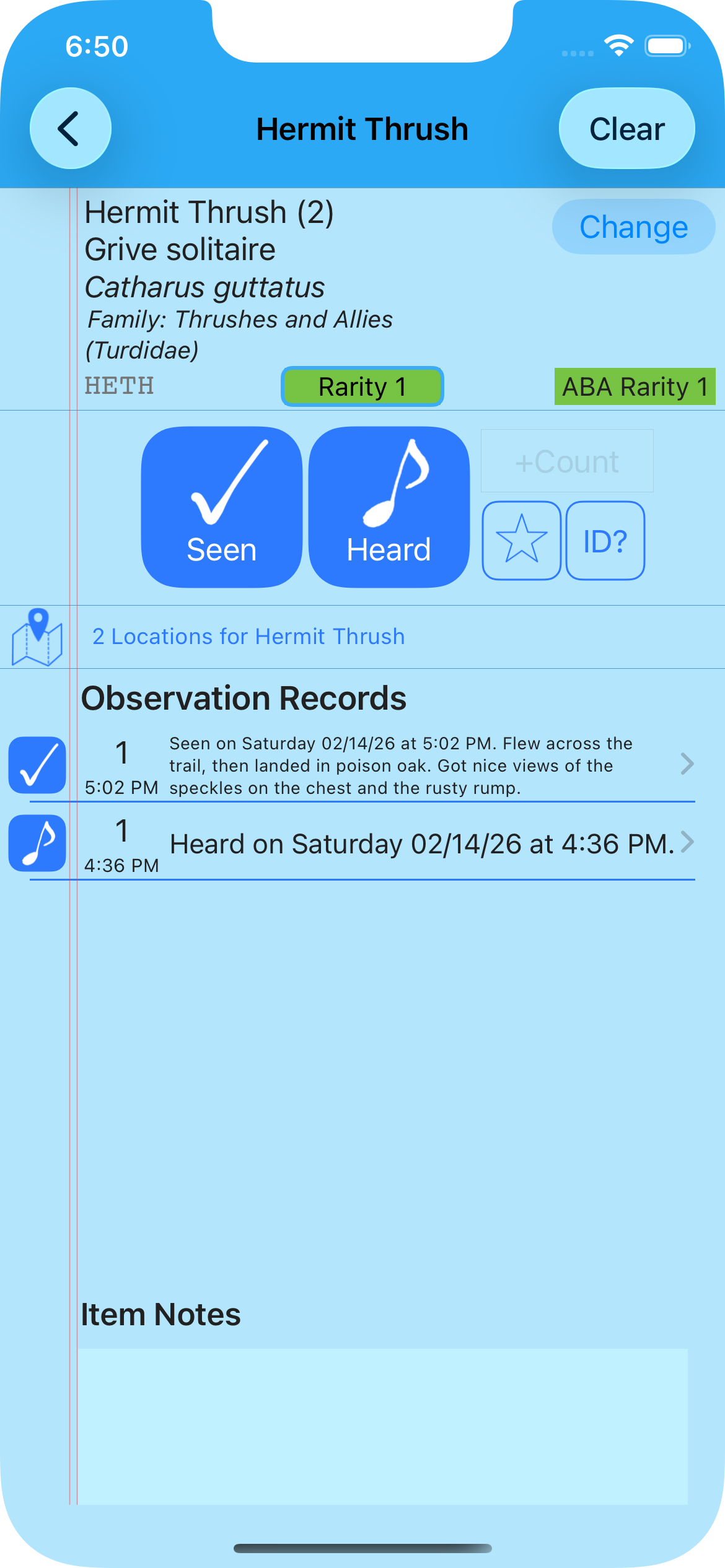
Tapping on a bird name in the Checklist View will take you to the Detail View for that bird.
This view lets you add more information to your bird sighting. If you just saw 100 Sandhill Cranes, you might prefer to type "100" rather than tapping the Seen button 100 times! If you want to add a note to a particular bird sighting, you can tap on the name of the bird to be taken to the Detail View. Here you can write a note, bump the count of birds seen, star the bird or edit the individual observation records.
Why Birdathon?
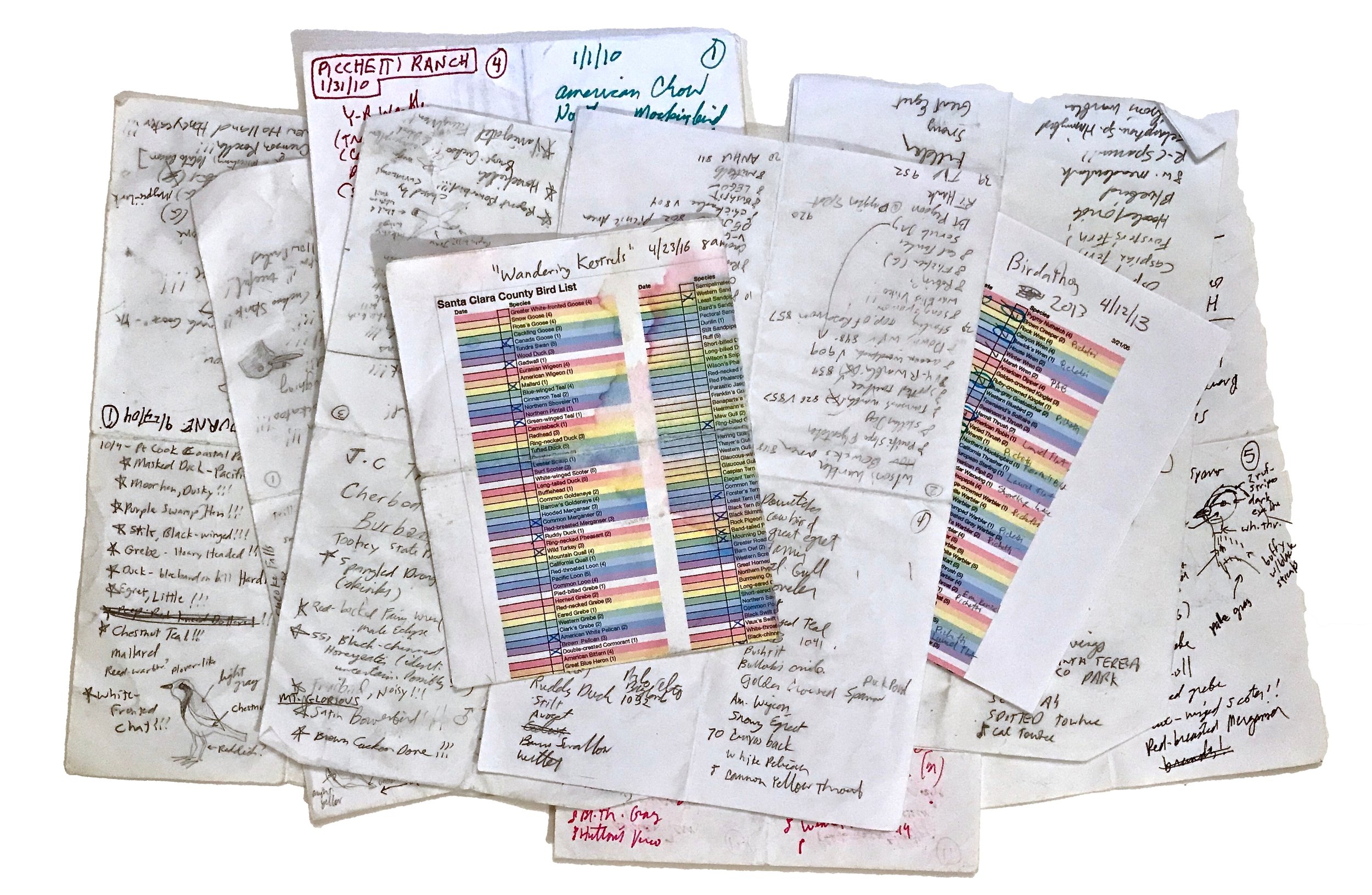
I've been using paper checklists since I started birding many years ago. Usually I would just pack a pencil and a folded blank piece of paper in my pocket and write down the birds as I went along. I would often forget to write the time and location down. I also rarely marked the count for a species or new locations where I observed a species for a second time.
I also tried using preprinted lists, but those had the disadvantage that it took time to find the bird on the list before checking it off. It was fast enough if I had an idea where the bird might be on the list (like House Finch, which was generally near the bottom) or if the list was short, but could slow me down if I was less sure (where is American Dipper again?) or if the list was long.
When I set out to write an app, I had some clear goals: I wanted it to be similar to traditional paper lists, but it had to be better, faster, more accurate and more organized than paper. I also wanted the ability to record other observations such as mammals, reptiles, insects and flowers, while still keeping the focus on birds.
I wanted Birdathon to be as easy to use as a paper list. I wanted it to work without an internet connection. I did not want to have to sign in to an account to use the app.
With Birdathon, I can instantly find any bird just by typing a few characters in its name, or by typing its four-letter banding code. For example, even in the AOS list which contains 2,143 species, typing ‘blp’ brings up only two species: Black Phoebe (whose code is ‘BLPH’) and Blackpoll Warbler (‘BLPW’).
In Birdathon, my disorganized pile of bird checklists becomes an organized table that I can view by type, date created, date modified or alphabetically. It’s easy to find a list from a particular outing just by scrolling through the main view.
And when I send an email report, my write-ups are rich in detail and read almost like a story.

What about eBird?
Birdathon checklists are compatible with eBird, but there are noteworthy differences between the two apps. Each have their advantages and disadvantages.
You can export Birdathon checklists for import into eBird, and to some extent import eBird checklists into Birdathon. When you export from Birdathon, you are asked for specific information that eBird needs (list type, travel time, whether it’s a complete checklist, etc.). Birdathon then saves the file to iCloud Drive (although you can also email yourself the file) and then guides you to the import page on the eBird website where you can import the exported file. After import into eBird, you can share your checklist, attach it to a hotspot, etc.
So why not just use eBird? That’s really your choice. Some checklists that you keep may not be suited to be eBird reports, such as a vacation list or just a list of all the birds you've seen in a day. You might also want to keep your life lists and other specialized lists as local data, rather than being on eBird's website. Every list you create in Birdathon stays with you, whether you have an internet connection or not.
Birdathon is observation-centric, while eBird is hotspot (or personal location) centric. Birdathon records the time and location of every observation, as well as whether the bird was seen or heard at that time. eBird stores a single location for every species and individual bird on your checklist.
Birdathon lets you add notes to your timeline, so you can better record activities such as moving to a new location or changes in the weather while birding. You can also record observations of mammals, butterflies, flowers, basically anything you want. This data can be a great way to enrich the description of your birding adventure.
Creating your own templates
Any list of birds you create or modify can be the basis for a new bird template. Just choose “Create Template” from the share menu (in the bottom right of the Checklist View), give the template a name and tap “Create Template.” After that, any time you create a new checklist from the Main View, your new template will appear as one of the starting points for a new checklist.
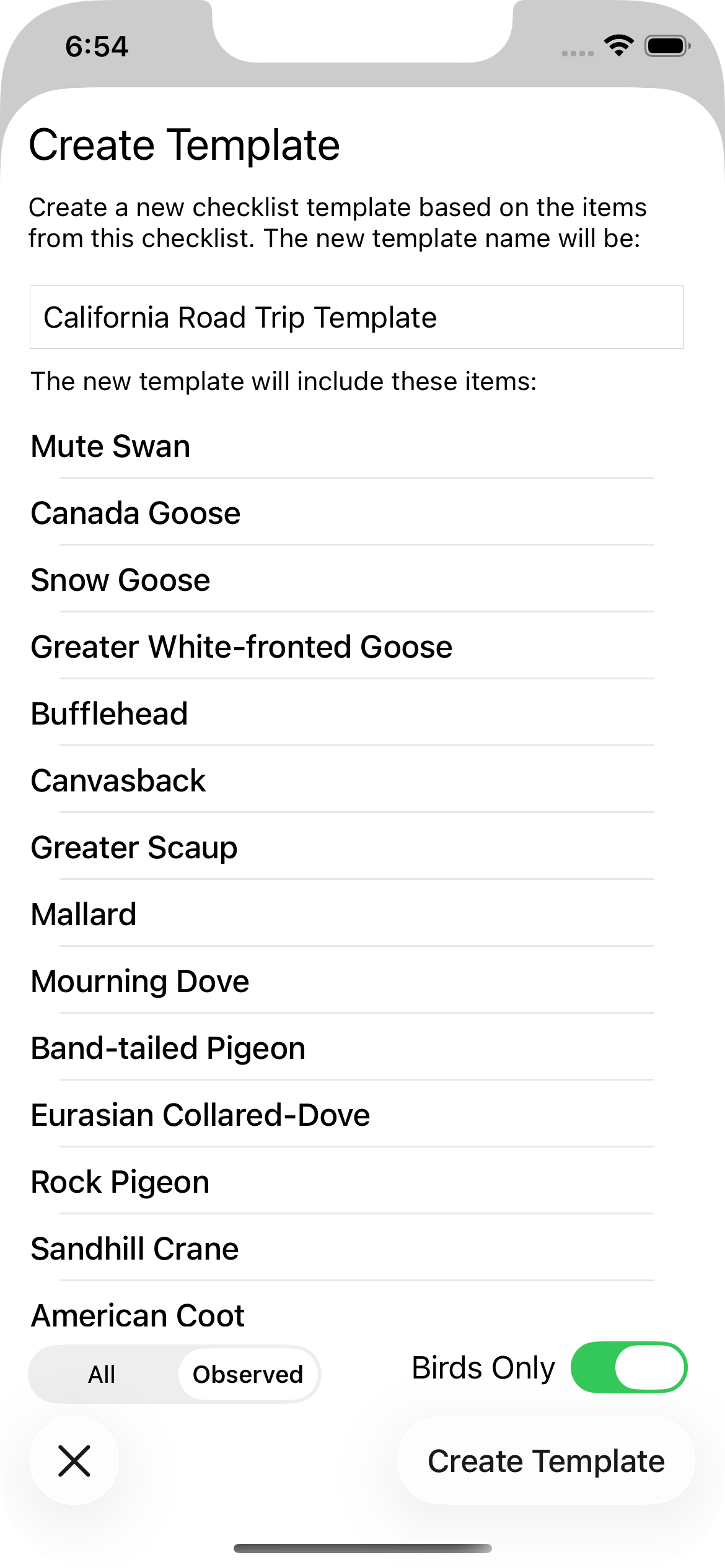
For example, if you just spent the day birding your neighborhood, you could use that checklist to make a new template called “Neighborhood Birds.” Then, when you go out birding the next day you could create a new list using the “Neighborhood Birds” template. That new list would only have the birds you saw the previous day, so it’s concise and relevant to your new day of birding. If you see a bird today that you didn’t see yesterday, it’s easy to add by tapping the + button and choosing “Add a Bird.” If you end up adding several new birds, you might want to use this new list to create an updated Neighborhood Birds template.
New templates can be created from the observed birds on your list or you can create a new template from all the birds on a list. This is useful, for example, if one of your existing templates is close to what you want. You can create a new checklist, delete some birds, add some birds and then create a new template from the full list.
In addition to creating templates from your existing checklists, you can import lists of birds. You can use any text file containing a list of common names of birds, or any csv (comma separated values) list whose first values are common bird names. For example, eBird Record Format files would work. We've provided a few examples of Birdathon-compatible checklists along with detailed instructions for you to learn how to import checklists that are posted on a website.
You can import lists sent to you via email. If someone sends you a list of birds enclosed in a text file, you can tap on that file on your iPhone, then tap the Share button and choose “Copy to Birdathon.” Birdathon will create a new template whose name matches the file name of the text file.
You can also import by tapping the “+” button on the Main View to bring up the New Checklist view. Then tap on “Import a Template...” at the bottom of the list of templates. This will bring up a file browser that lets you navigate to wherever your list is stored (iCloud Drive, Dropbox, etc.) and import simply by tapping the file.
You can rename an imported template by dragging your finger to the left over the template name and choosing "Rename." You can delete imported templates by dragging your finger to the left over the template name and choosing “Delete.”
Support
You can send support questions and feedback to birdathon@voyageropen.com.